Configure App-Wide Settings
There are quite a few different features that can be enabled, depending on how much you want to have automated.
Campaign Member Records
When a UTM Touchpoint record matches a Campaign, and Lead/Contact it can create a new CampaignMember record if one does not already exist.
We highly recommend enabling this feature, and to do so:
From the Configuration Setup page:
- Scroll to step 4
- Enable the Toggle for Create CampaignMember records.
- Enable the Toggle for setting CampaignMember CreatedDate. (see Enabling Set Audit Fields)
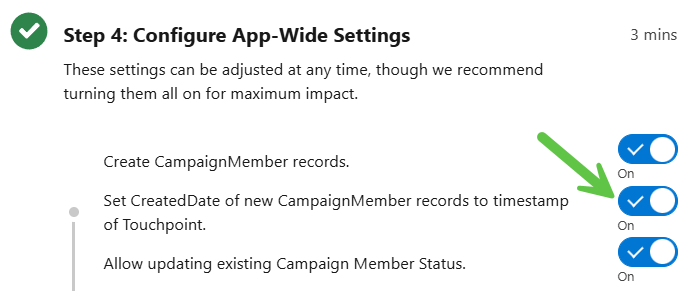
Any CampaignMember record created by the app will have its Is UTM Touchpoint field set to checked, enabling reporting and data operations as necessary. New Campaign Members are given the status in the Campaign's UTM Campaign Member Status field. If that field is blank, they get the Campaign's default status.
Regardless of the CreatedDate setting, you can always report on the time the URL was visited. Every Campaign Member the app creates has the Date/Time field cfl_utm__Utm_Timestamp__c populated with the time of the visit.
If desired, you can allow the application to update an existing CampaignMember record's status.
- Enable the Toggle
- On the Campaign Record, be sure to define which statuses can be overridden, and which status the app should stamp.
For more information, check out how matching works.
Google Click ID (GCLID) Processing
GCLID can be an important field when you are looking to see the full conversion data in Google Ads. When enabled, the app can parse the GCLID from the URL and stamp the UTM Touchpoint record.
From the Configuration Setup page:
- Scroll to step 4
- Enable the toggle for Process GCLID
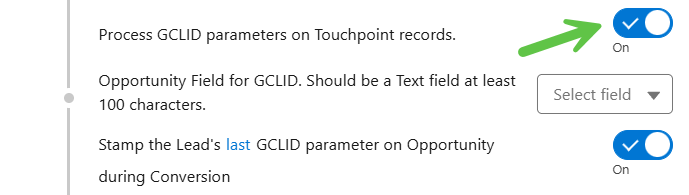
Additionally, the GCLID can be stamped into an Opportunity Custom Field when a Lead is converted. This supports Google's integration looking at a custom field on the Opportunity.
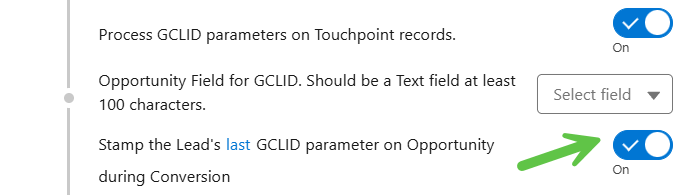
- Select the Opportunity Field to store the GCLID. If you need to create a new field, be sure to add it to the UTM Touchpoints Custom permission set, then refresh this screen.
- Enable the toggle to stamp the value. Click the word first or last in the sentence to choose whether the Lead's earliest or most recent GCLID is used. The value is written when the Lead is converted, so the user converting the Lead needs edit access to the Opportunity field you chose.
Enabling the Application
Take your time getting UTM Parameters and Campaigns set up. When you are ready, turn on Enable UTM Touchpoint Processing at the bottom of step 4. Touchpoints begin arriving after the next scheduled import; the Status panel shows the last successful import for each connected platform.
