
Connect Account Engagement (Pardot)
This is step 5 of the Setup Assistant. Click Account Engagement. (Using HubSpot? See Connect HubSpot.)
Click the button to connect the app to your Account Engagement Business Unit.
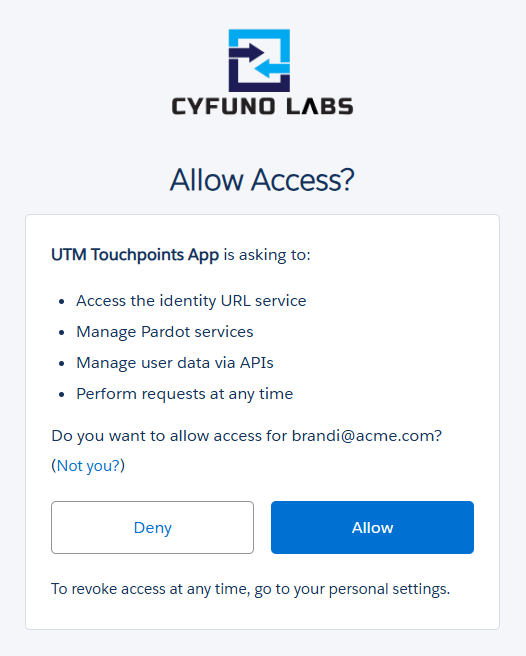
If you are wanting to use an integration user, open the button’s link in a Private Browsing session and login to Salesforce as the integration user.

- Make sure the username is the one you want the app to use in querying Account Engagement and creating Salesforce records.
- Click Allow to grant access
This permission screen allows our App to make API calls to your Salesforce environment.
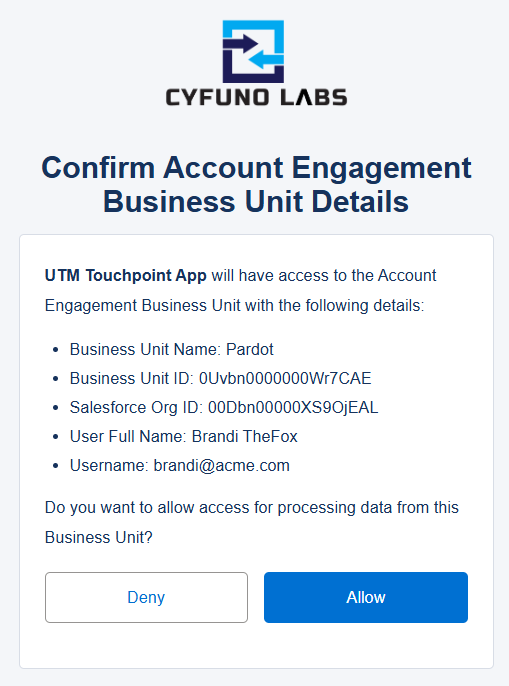
Next, grant App access to your Account Engagement Business Unit.
- Verify your business unit details
- Click Allow to grant access
- Close the Browser tab when you see the confirmation screen.
Note:
- If the User doesn’t have the UTM Touchpoints permission set, we will provide an error message to let you know.
- If the User doesn’t have access to Account Engagement with at least Marketing User access, we will provide an error message to let you know.
- If you have multiple Business Units, you can connect more with our Enterprise Pricing Plan.
What happens next. The connected Business Unit appears in the UTM Touchpoint Status panel with the username it is integrated as. Touchpoints are imported on a schedule (every 6 hours on the Standard plan), so Last Successful Import stays empty until the first run completes.
Sandboxes. When you connect from a sandbox, the app uses the sandbox login flow automatically.