
Campaign Page Enhancements
There are 3 ways in which you can enhance your Campaign Page with our UTM solution.
- Add UTM fields to the page
- (optional) Add app component that helps with URL generation
- (optional) Add report chart showing UTM Touchpoints
Add UTM Fields to the Page
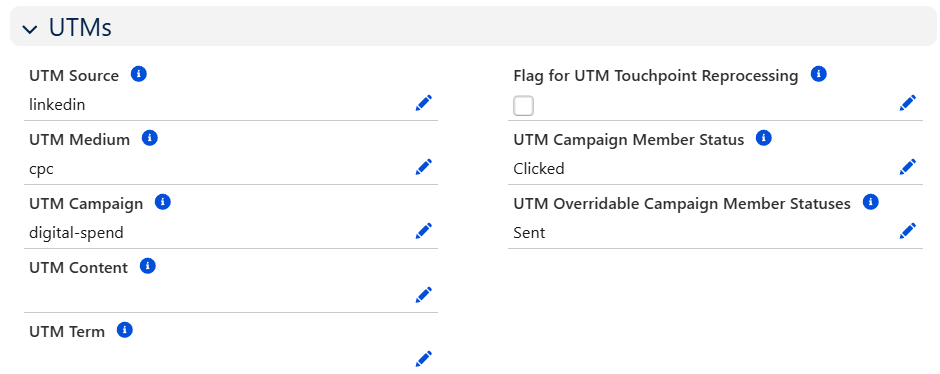
This one is pretty simple. Out of the box, our solution comes with fields that you will want added to the Campaign page layout / lightning layout.
- Fields for UTM parameters (we include 5, but you might have added your own)
- Flag for UTM Touchpoint Reprocessing (ideal during initial setup)
- UTM Campaign Member Status
- UTM Overridable Campaign Member Statuses
You are free to arrange these however you like, though we find the most success when:
- They are in their own section
- UTM Parameters are on the left, in order of importance
- App-specific fields are on the right
URL Generation Component
We've included a Lightning Web Component (LWC) that makes it super easy to generate/build a URL based on your newly created UTM values.
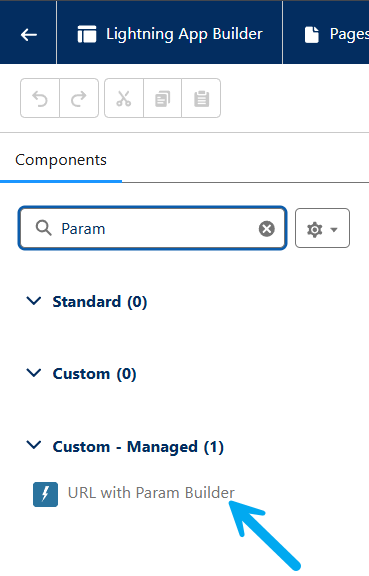
- Navigate to your Campaign Lightning Record Page, and Edit it.
- In the Components pane, search for Param, drag the URL with Param Builder component onto the page where you want it to appear.
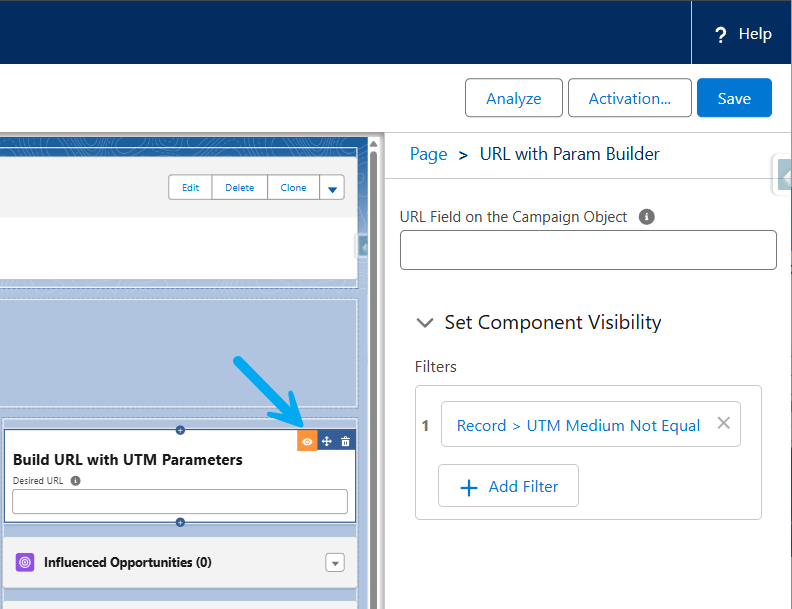
- (optional) If you have a Custom Field that you record the URL that is associated with this Campaign, you can provide the API Name of that Field in the URL Field on the Campaign Object text box. This makes URL generation in the future easier!
- (recommended) Set Component Visibility so that this LWC only appears if the Campaign has UTM values defined. Pick one of the UTM Fields that you have defined as required.
- Save your page changes, and Activate the page if you haven't already done so.
Report Chart
Sometimes it is really nice to get a quick preview into the Touchpoints that are associated to a Campaign. We've included a Report (with a Chart) to make this simple to get started.
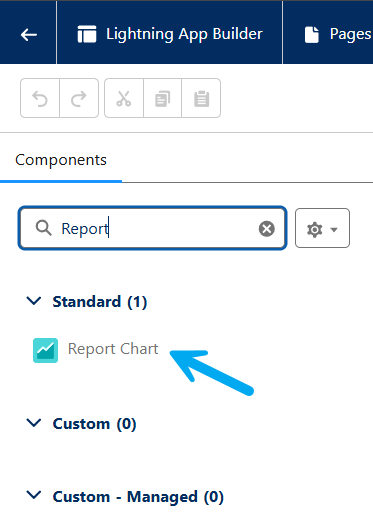
- Navigate to your Campaign Lightning Record Page, and Edit it.
- In the Components pane, search for Report, drag the Report Chart component onto the page where you want it to appear.
- Choose the Campaign's UTM Touchpoints by Quarter report (you can always create your own later!)
- Be sure to set Filter By to Campaign: Campaign ID so that the Chart only shows Touchpoints for the current Campaign.
- (recommended) Set Component Visibility so that the chart only appears if the Campaign has UTM values defined. Pick one of the UTM Fields that you have defined as required.
- Save your page changes, and Activate the page if you haven't already done so.
