Send a Direct Message
Direct Messages (DMs) are ideal when you need to notify a single User.
Great examples include:
- Process Action Needed Notifications
- Error Notifications
- Simple Alerts
Permissions Required
| Permission | Description |
| Manage Flow | To create the Flow |
| Teams Designer (Perm Set) | To work with this package's Flow Actions. |
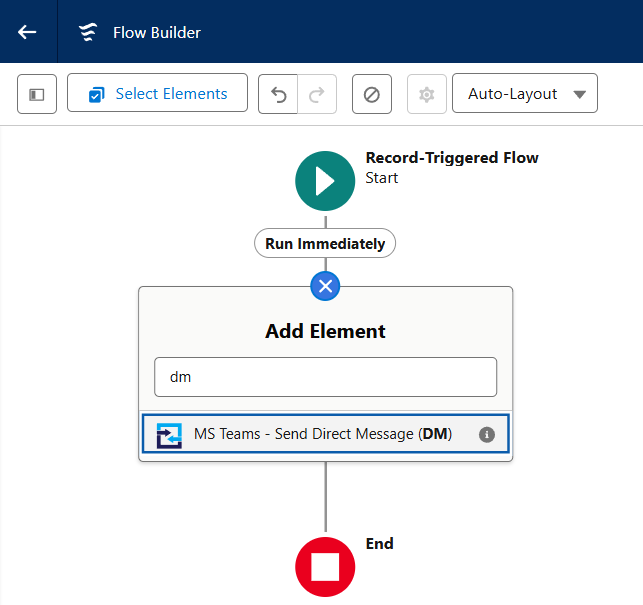
From your Flow, we will start by adding a new Element.
- Search for DM, select MS Teams - Send Direct Message (DM)
-
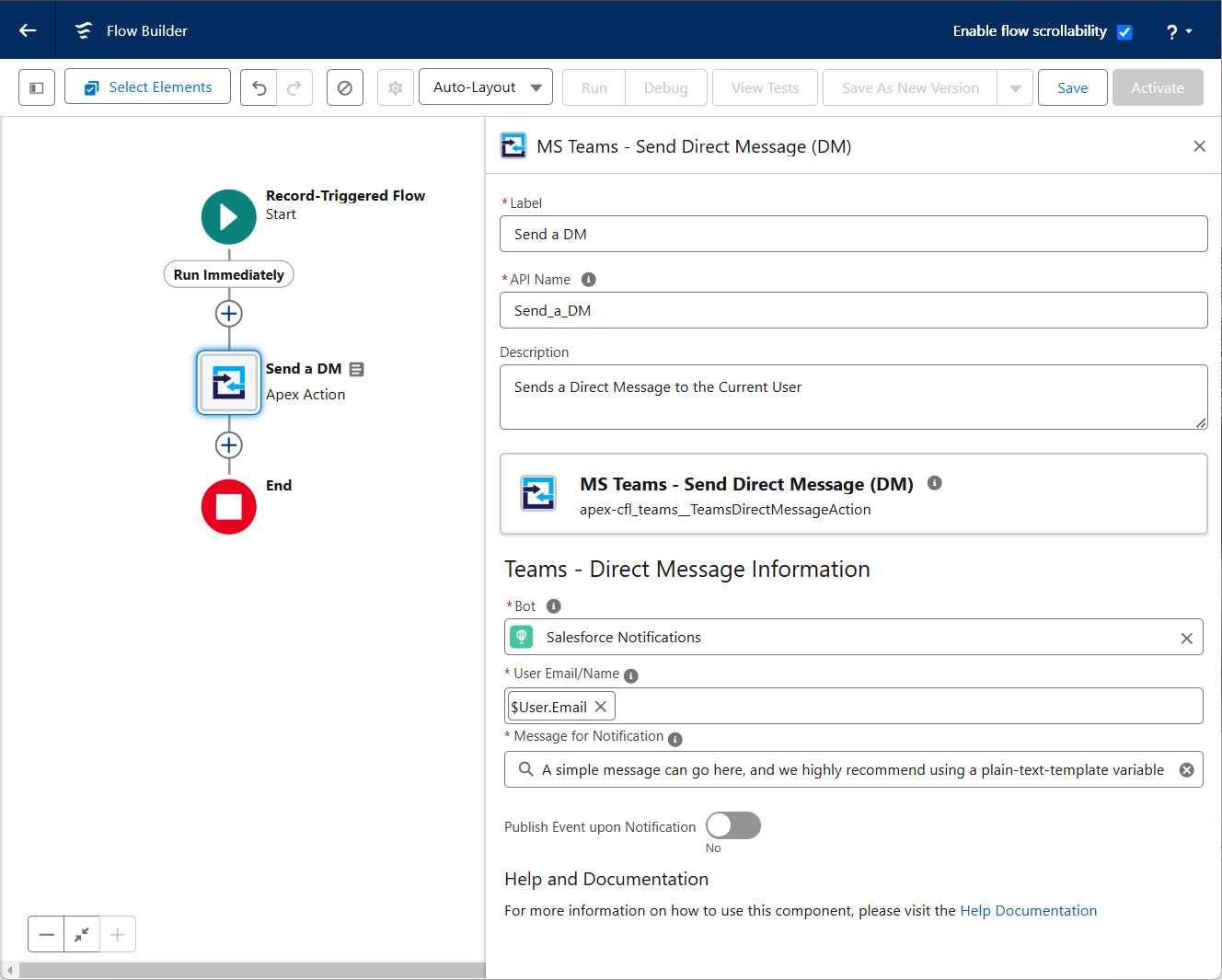
Give the new Flow element a Label, allow the API Name to auto populate
-
(optional) Provide a description to help you remember the intent of this Notification.
-
Search for the Teams Bot you want to send this notification through.
- Provide the recipient's Full Name or Email Address. The Teams user does not need to be a Salesforce User.
-
Type in (or select a variable) for the Message you wish to have sent.
-
Click Done to save this Action to the Flow designer.
-
Don't forget to Save & Activate the Flow when you are ready!
The message can be in Plain Text, or it can be composed using Markdown. (more on that)
If the message itself is fairly simple, we recommend just typing it into the Textarea directly. If the message is a bit more complicated, or uses more than a couple of Resources, we recommend using a Text Template.
A Text Template is a great way to build a slightly more complicated Message.
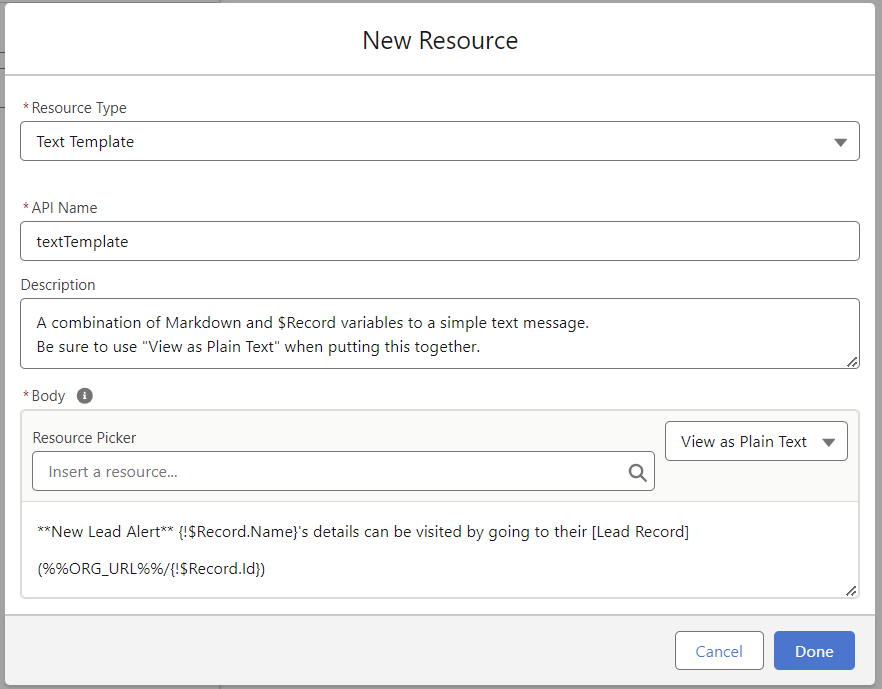
- From the Flow's Toolbox, click New Resource
- Choose Resource Type: Text Template
- Provide an API name that you will use inside the Apex Action
- (optional) Add a description for this message
- Body: Make sure to choose View as Plain Text prior to making the message. Rich Text uses HTML for formatting, which is not Markdown compatible.
- Type in the text (optionally using Markdown for formatting) and use the Resource Picker when needed to add fields & data available to your Flow.