
Why Your Salesforce Campaign Attribution is Broken (and How to Fix It)
November 9, 2025
Ultimate Guide to Account Engagement External Actions
November 22, 2025
Calling the Account Engagement API from Salesforce
(A Technical Guide with Step-by-Step Setup Instructions)
Marketing Cloud Account Engagement (MCAE, formerly Pardot) offers a rich API that can power advanced automations, custom integrations, and data-driven workflows inside Salesforce. But before Salesforce can call the MCAE API, you need to set up the right foundation... a secure connection that defines who can call the API and how they authenticate.
If you’ve ever configured OAuth or external integrations before, this might feel familiar, but with Salesforce’s newer External Client Apps, Named Credentials, and External Credentials, there’s a bit more flexibility (and a few more screens).
In this post, you’ll learn how to configure everything needed for Salesforce to make secure API calls to Account Engagement... all as a single integration user.
(If you prefer to skip these steps, our MCAE Toolbox app handles most of this setup automatically.)
Overview: The Building Blocks
Before jumping into Setup, here’s the mental model:
- An External Client Application (the new version of Connected App). Think of this as building the door and lock that allow other things to call the API.
- A Named Credential (along with External Credential). Think of this as minting the golden key that can unlock the door.
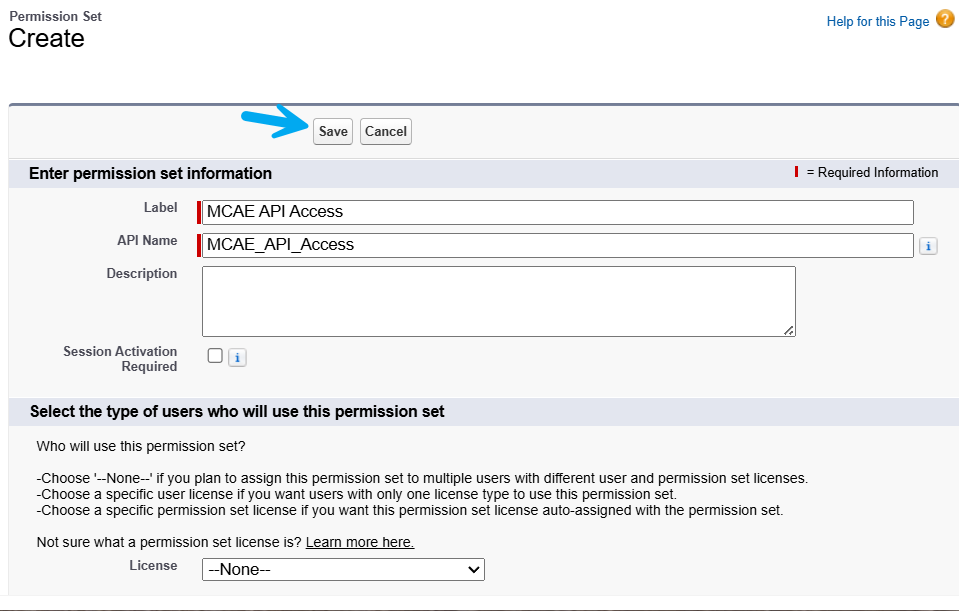
- Permission Set. Think of this as defining who is allowed to use the key.
Salesforce gives you flexibility in how these components interact. The configuration shown here uses a single Integration User to perform all API requests… meaning all actions in MCAE will appear as coming from that user.
If your org needs actions logged as individual users, you’ll need to explore per-user OAuth flows or connected app policies instead.
Step 2: Create External Client Application
In Salesforce Setup, search and navigate to App Manager, and create a New External Client App.
- Basic Information
- External Client App Name: MCAE API Access
- API Name: Allow it to automatically populate
- Contact Email: put your email address here
- Distribution State: Local (as only your Org will be using this)
- API (Enable OAuth Settings)
- Check the Enable OAuth checkbox, more things will appear
- App Settings
- Callback URL: we don’t use this, however it is a required field. Simply type: https://notused.com
- OAuth scopes: select “Perform requests at any time” and “Manage Pardot services”
- Flow Enablement
- Enable Client Credentials Flow
- Click Create

After it is created, we have to make some edits to it.
- OAuth Policies, Plugin Policies
- Permitted User: Admin approved users are pre-authorized
- OAuth Flows and External Client App Enhancements
- Enable Client Credentials Flow (yes, a 2nd time)
- Provide an MCAE Username that will perform the API requests, such as Updating a Prospect
- Save the edits

Next, scroll back up to the App Policies section, and click the Edit button
- Select Permission Sets: add the Permission Set you created above
- This allows the users to use this External App, or allows them to enter the door.
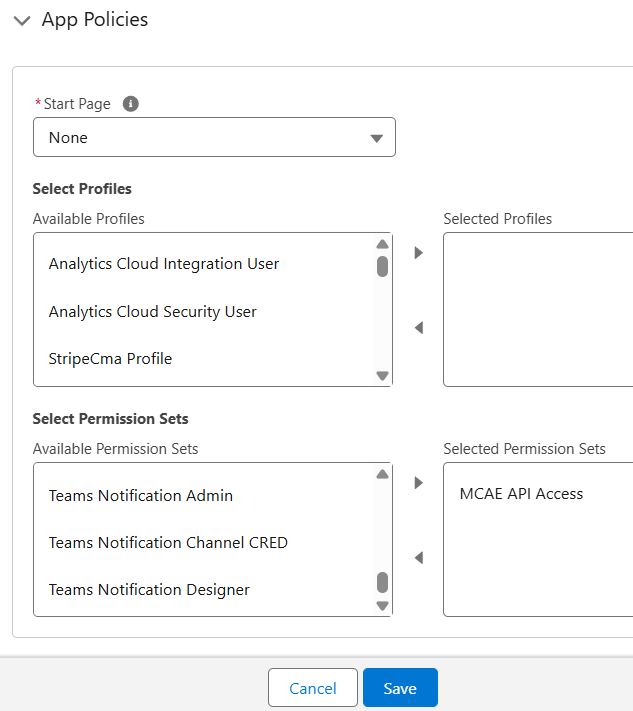
Finally, grab your Consumer Key and Consumer Secret from the Settings → OAuth Settings section as you’ll need them in the next step.
Step 3: Create Named Credential
In Salesforce Setup, search and navigate to Named Credentials.
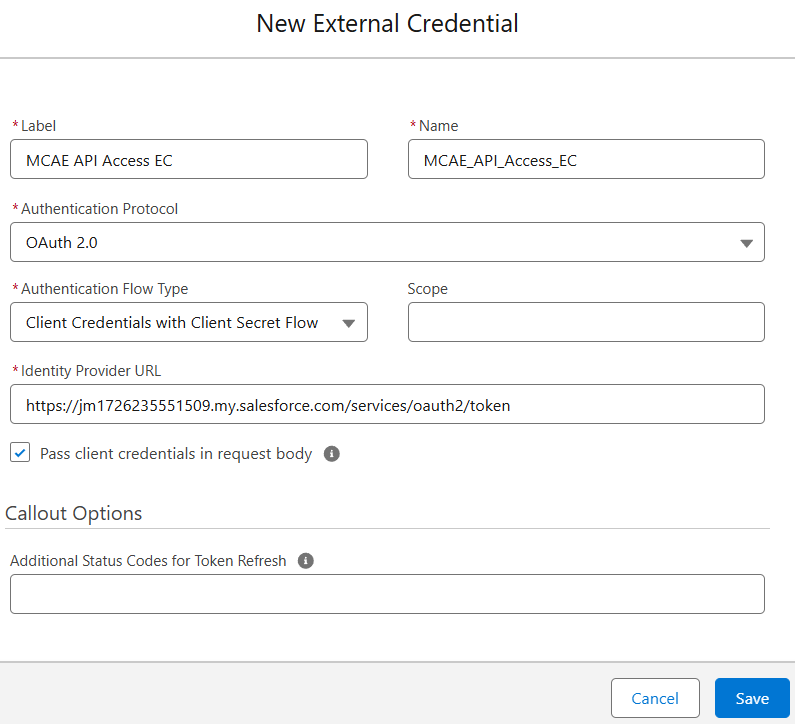
First, we will create a new External Credential
- Label: MCAE API Access EC
- Name: MCAE_API_Access_EC (this is the API name, and it doesn’t auto populate)
- Authentication Protocol: OAuth 2.0
- Authentication Flow Type: Client Credentials with Client Secret
- Identity Provider Url: You’ll want to use your My Domain URL here, followed by /services/oauth2/token.
- For example: https://jm1726235551509.my.salesforce.com/services/oauth2/token
- Check the “Pass client credentials in request body” checkbox
- Click Save
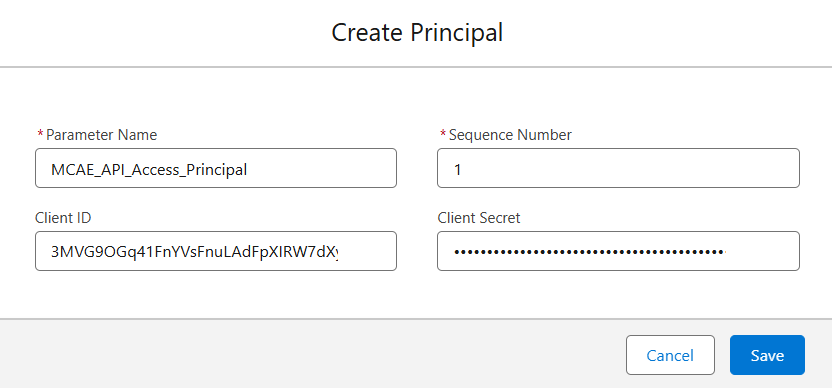
Next, we need to add our Consumer Key and Secret. Scroll down to the Principals section, click New
- Parameter Name: MCAE_API_Access_Principal (this is just the name we are giving this thing)
- Sequence Number: (leave at 1)
- Client Id: paste the Consumer Key from our External Client App
- Client Secret: paste the Consumer Secret from our External Client App
- Click Save
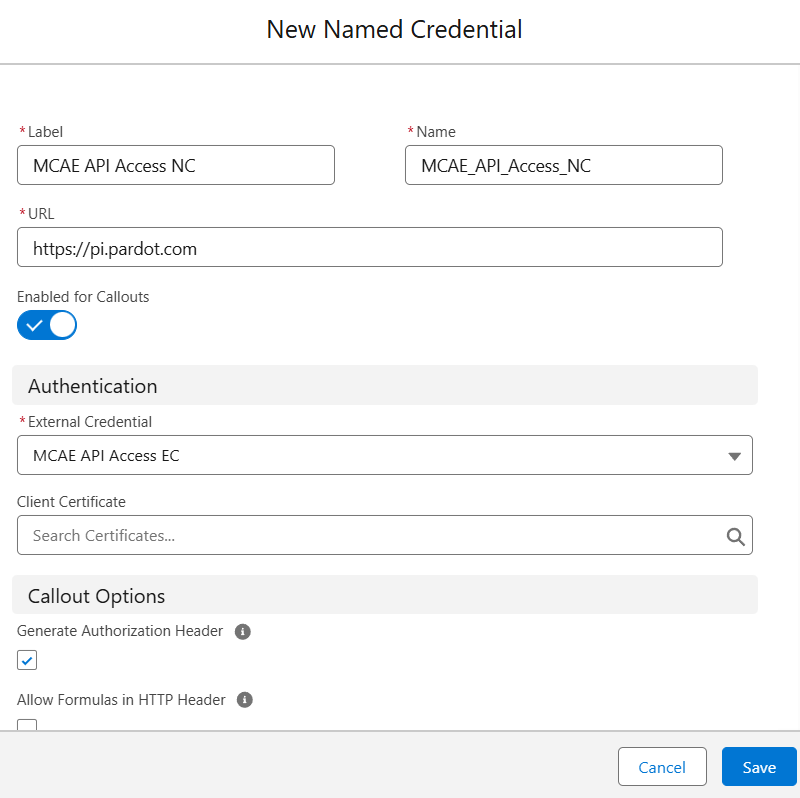
Now, we can create the Named Credential. Go back to the Named Credentials screen in Setup, and make sure you are on the Named Credentials tab. Click New
- Label: MCAE API Access NC
- Name: MCAE_API_Access_NC (this is the API name, and it doesn’t auto populate)
- URL: https://pi.pardot.com (or https://pi.demo.pardot.com for Sandboxes / Dev Orgs)
- Enabled for Callouts: leave this checked
- External Credential: pick the one we just created above
- Click Save
Finally, we need to associate the External Credential we created to the Permission Set.
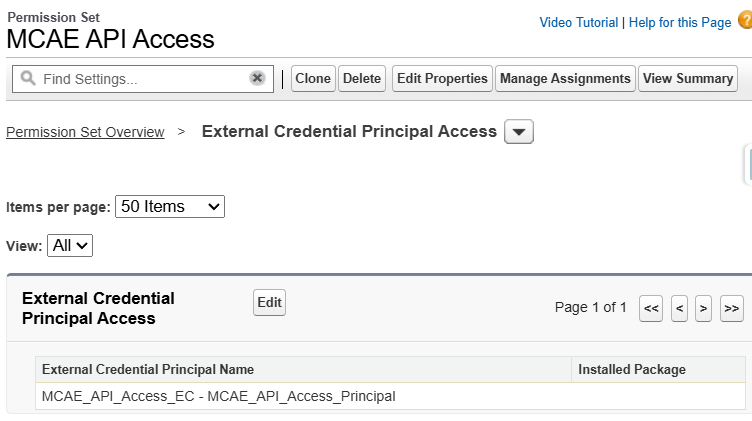
- Navigate back to the Permission Set you created, then navigate to External Credential Principal Access
- Edit the empty list, so that you can add the Principal we've created above.
- Save your changes.
That’s it! Salesforce can now securely call the MCAE API using your Integration User.
You will use the Named Credential MCAE_API_Access_NC to take advantage of everything we've assembled so far.
Wrapping Up
You’ve just configured the three building blocks needed to call the Account Engagement API from Salesforce, securely and reliably.
While this post walked through the manual setup, if you want to skip straight to testing External Actions, our Account Engagement Toolbox app can do much of this heavy lifting for you. It automatically connects your org, validates API access, and provides pre-built External Actions that call MCAE endpoints… letting you focus on building automations, not authentication flows.